 LuviDuo
Get the app
LuviDuo / Add a couple widget
How to add a couple widget, step by step
Updated November 4, 2026
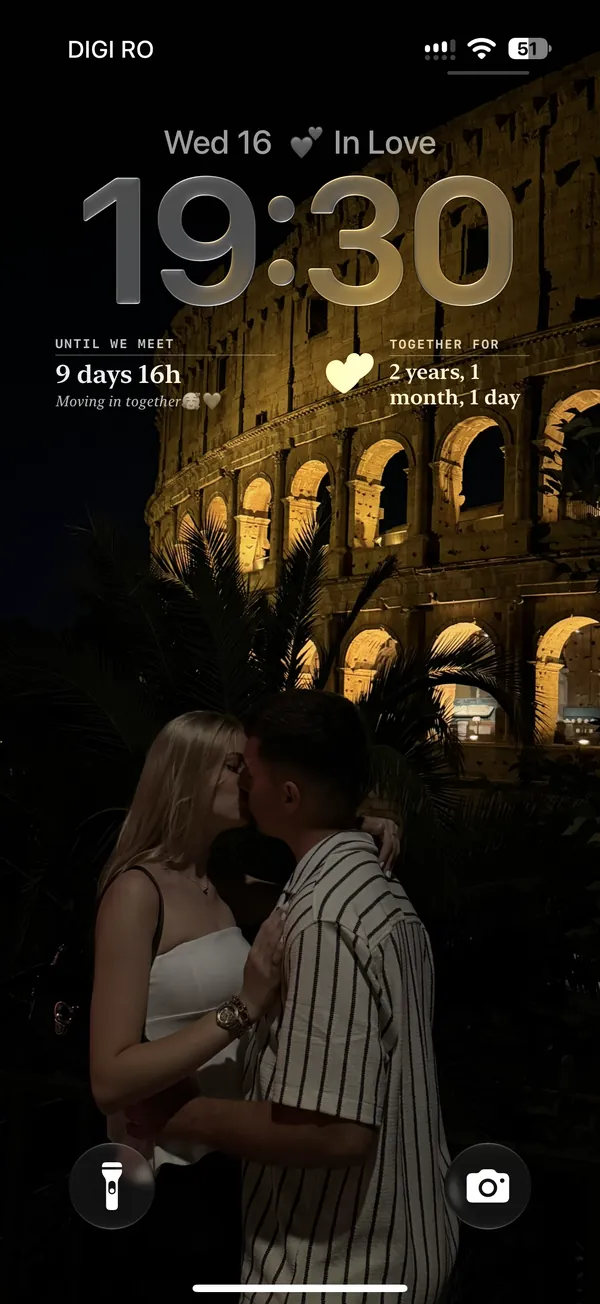
First, connect
- You both install LuviDuo.
- One of you shares the couple code and the other enters it. The widgets show what your partner shares, so they stay empty until you connect.
iPhone lock screen
- Touch and hold the lock screen.
- Tap Customize, then Lock Screen.
- Tap the widget area and choose LuviDuo.
- Pick Until we meet, Together, Mood Sync, Distance or Couple Streak, then tap Done.
iPhone home screen
- Touch and hold an empty part of the home screen.
- Tap the add button or Edit, then Add Widget.
- Search for LuviDuo, choose a widget and size, then tap Add Widget.
Android home screen
- Touch and hold an empty part of the home screen.
- Tap Widgets. The name of this menu changes a little between phones.
- Find LuviDuo and drag a widget to your screen.
If a widget stays empty
- Check that you are both connected in the app.
- Open the app once, so the widget can load the latest data.
- On iPhone, remove the widget and add it again.
See what each couple widget does.
What is free: LuviDuo is free to download and use, with ads. The widgets, the games and your pet are all in the free app. LuviDuo Premium is optional, covers both partners, removes the ads shown before sending moments and before games, keeps all your shared memories, and adds monthly Sparks and faster wheel energy. More in the FAQ.
Questions
- Why is my couple widget empty?
- Usually because you are not connected yet, or the app hasn't been opened since the widget was added. Connect with your couple code and open the app once.
- Does LuviDuo have lock screen widgets on Android?
- The lock screen widgets are on iPhone. Android has the same information as home screen widgets.
Try LuviDuo together
Free on iPhone and Android. Both of you install it, then connect with your couple code.